Trying CloakBrowser: Familiar Playwright Code, a Different Chromium
I came across CloakBrowser and wanted to understand what changes when the automation code stays familiar but the browser underneath is different. So I installed it and tried a small screenshot workflow.
The page loaded, the checks passed, and I got a screenshot. Getting there also exposed something worth knowing before adding it to a CI job: the browser needs a license check, and that check has its own network requirements.
What it changes
CloakBrowser is a wrapper around a custom Chromium binary. Its Python interface uses Playwright; JavaScript users can use Playwright or Puppeteer. After launch, ordinary operations such as page.goto(), locators, and screenshots still use the familiar APIs.
According to the project, the binary modifies fingerprint and automation signals in Chromium itself, including canvas, WebGL, fonts, and hardware reporting. A fingerprint is the collection of browser characteristics a site can observe; changing one signal does not control every reason a site might reject a request. Architecture.
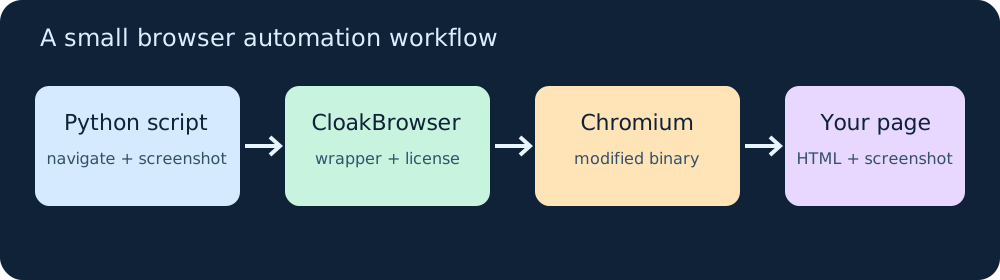
For tests against my own application, I would normally start with standard Playwright. It already handles this screenshot example. CloakBrowser becomes worth evaluating when an authorized automation workflow needs a different browser fingerprint. I would measure it against that actual workflow before making it a dependency.
Run a small example
I used Python 3.12, CloakBrowser 0.7.2, and the downloaded Chromium 156.0.8078.47.1 binary on Linux. Pinning the Python package alone does not pin the browser: the wrapper downloads a separately versioned build.
Download and unzip my complete demo, then open a terminal in the cloakbrowser-demo folder:
python3 -m venv .venv
source .venv/bin/activate
pip install cloakbrowser==0.7.2
cloakbrowser login
A free key requires email registration; the current free tier allows one concurrent session. For CI, supply CLOAKBROWSER_LICENSE_KEY through the runner’s secret settings. The first launch downloads a browser binary, roughly 200 MB according to the documentation, so allow for that in a fresh environment. Installation and licensing.
Start the demo page in a second terminal, from the same folder:
python3 -m http.server 8000 --bind 127.0.0.1
The core of capture.py is short:
from cloakbrowser import launch

browser = launch(headless=True)
try:
    page = browser.new_page(viewport={"width": 1280, "height": 800})
    response = page.goto("http://127.0.0.1:8000/", wait_until="load")
    assert response is not None and response.status == 200
    assert page.title() == "Release checklist"
    assert page.locator("li").count() == 3
    page.screenshot(path="page.png", full_page=True)
finally:
    browser.close()
Back in the first terminal, run python capture.py. The downloadable script also prints the results and supports an environment-provided HTTPS proxy. The assertions catch a wrong page or missing content before saving the image; finally closes the browser if a check fails.
The result from my run
Status: 200
Title: Release checklist
Checklist items: 3
This is the actual screenshot from CloakBrowser, using an original local page:
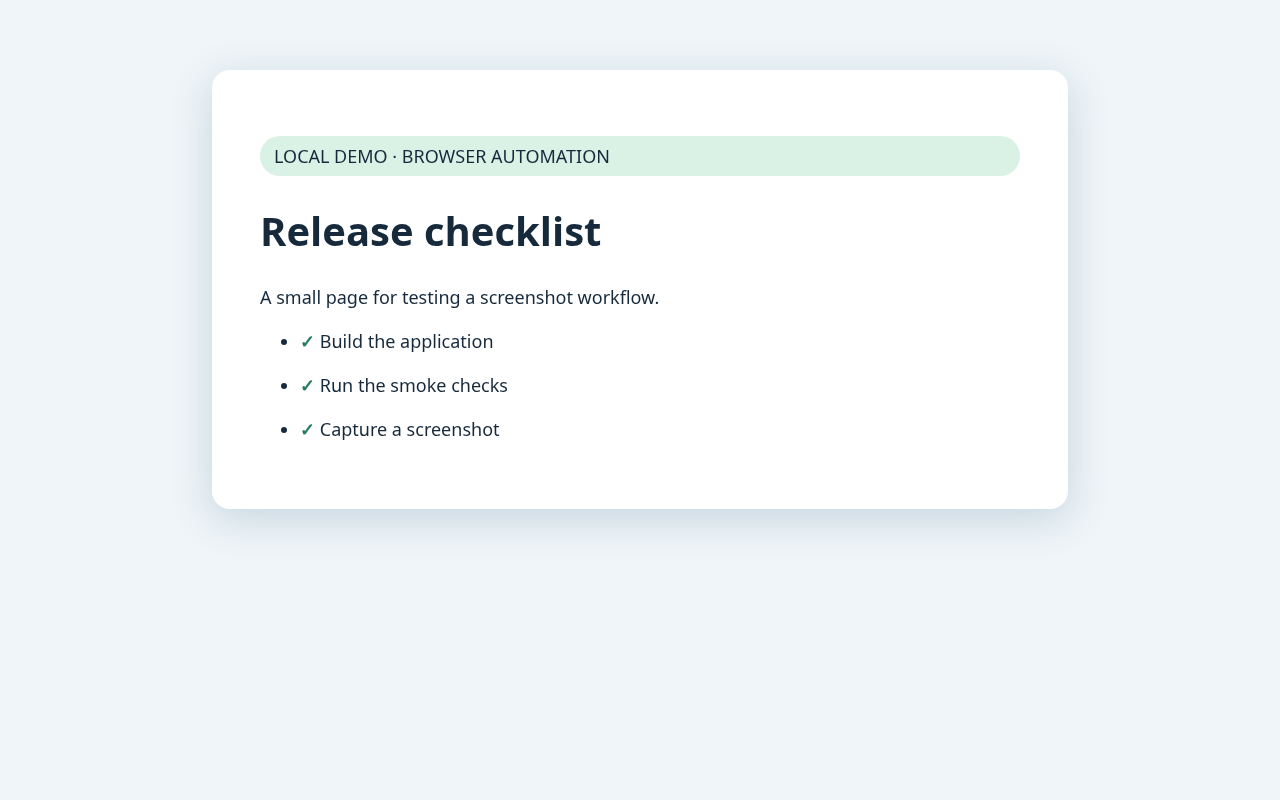
This verifies navigation, DOM checks, and screenshot capture. I did not benchmark detection resistance or test access to a protected third-party site.
The proxy issue I hit
My cloud environment sends internet traffic through an HTTPS proxy. The Python wrapper validated the key and downloaded Chromium, but Chromium then exited during its own license check. The browser logs showed a certificate error.
Two settings mattered: explicitly passing the environment’s proxy to Chromium with --license-route=proxy, and adding the environment’s trusted proxy CA to Chromium’s user certificate store. I kept localhost outside the proxy and left TLS verification enabled. The bundled script handles the proxy argument; certificate installation depends on your environment’s supported trust configuration. Documented browser flags.
That distinction is useful when debugging: a successful package install and download do not prove the browser can reach its license service. In a locked-down runner, check both stages.
Where I would go next
For a permitted monitoring or QA task, I would replace the demo URL, assert the specific content I need, and save a screenshot when something fails. Persistent profiles can help when a workflow needs cookies between runs; proxy settings and optional humanized interactions are also available. I would add those only as the task requires them.
The useful part for me is the familiar page API. The extra cost is operating another browser distribution, its downloads, and its license connectivity. This experiment gives me a working starting point, while the project’s detection claims still need testing against the particular workflow I care about.